
These days people keep asking me the same thing: "I'd like to build something with AI too, but where do I even start?"
So I gathered two of my friends from high school and started a six-week class. I'm far from qualified to teach it, but since I'd already made the material, I decided to write it up here in order too. This is the first session.
A disclaimer up front: I'm not a great programmer. I'm an electrical engineering senior who has picked up programming as a hobby, a little at a time, for about ten years. This series is built for complete beginners, to show how the pieces fit together, so I wouldn't recommend it if you're past that stage.
With that out of the way, let's begin.
"Why learn any of this when AI does it all?"
Honestly, I think this a lot myself. Tell an agent "build me a budgeting app" today, and it really will build one.
So why learn about terminals and Python? Doesn't the AI do all of it?
The AI does the building. But making sure the result does what we intended, and stays something we can manage, is still on us. So this class isn't about writing code. It's about four things:
Directing the work, verifying it, rolling it back, and shipping it. (In the sixth and final session, we go one step further and design the environment the AI works in.)
While researching for these posts, I came across the central finding of DORA's 2025 report, the annual study of software teams run by Google:
AI is an amplifier. It magnifies an organization's existing strengths and weaknesses.
AI doesn't create skill; it enlarges whatever is already there. With a good system, you get much faster. Without one, things fall apart much faster.
What matters most, I think, isn't the building itself but how you turn your intent into something built, how much structure you keep while doing it, and whether you stay in control.
1. Paths: half of all beginner errors start here
Let's get into it. First, how to say where a file is. There are two ways:
- Absolute path: the whole thing from the top, like
/Users/ash/project/app.py. Think of it as a full street address. - Relative path:
./app.pymeans "right here," and../means "one folder up."
It sounds trivial, but it matters more than you'd think. Here's something I repeat throughout the class:
When you hit an error, don't dig into the code first. Ask yourself, "Which folder am I in right now?" That alone fixes a surprising number of problems. (I still do this myself when I'm working on autopilot.)
A file's extension tells you what kind of file it is: .py is Python, .html is a web page, .md is a document, .json is data. That's all you need for now.
Here's an example.
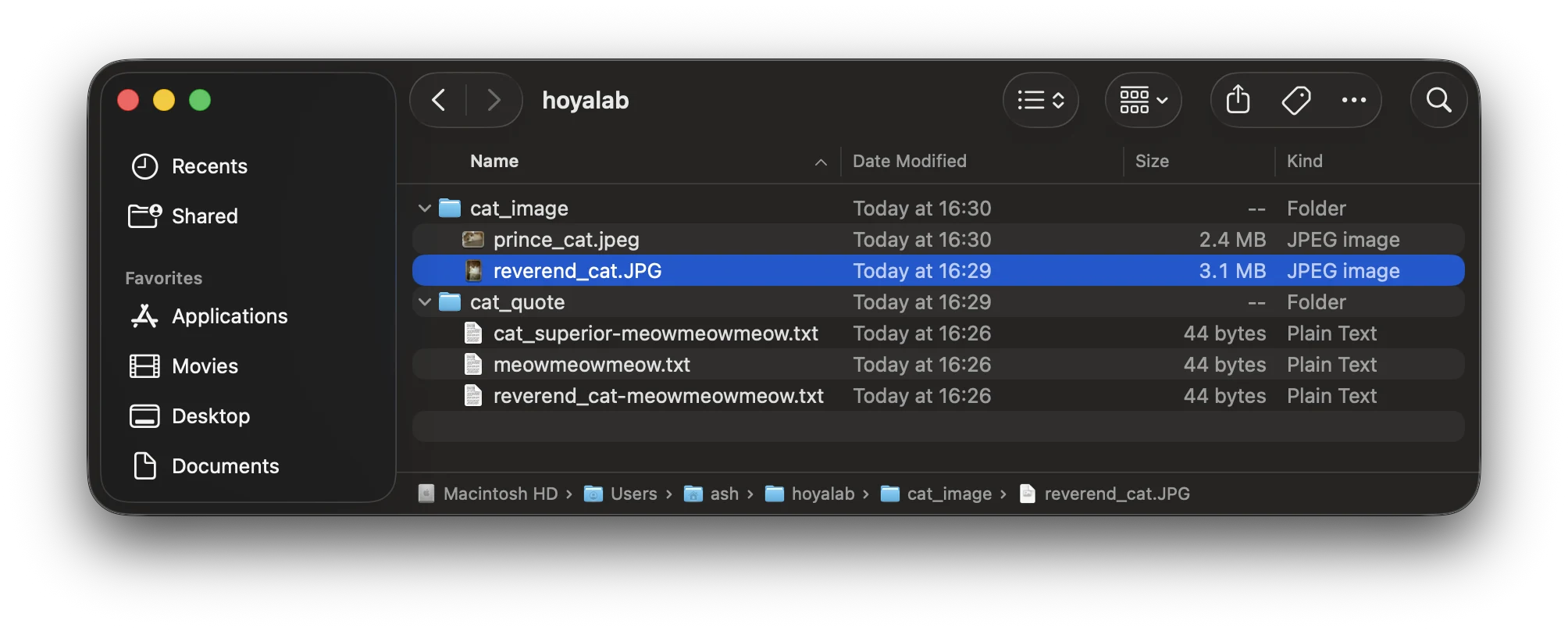
Inside a folder called hoyalab there are two folders, cat_image and cat_quote. To read the words of our esteemed reverend_cat, we need reverend_cat-meowmeowmeow.txt, whose absolute path is:
/Users/ash/hoyalab/cat_quote/reverend_cat-meowmeowmeow.txtIf you open a terminal without choosing a location, it starts in the logged-in user's home folder. In the screenshot below, the terminal opens in /Users/ash/, and the commands move around inside hoyalab and cat_quote.
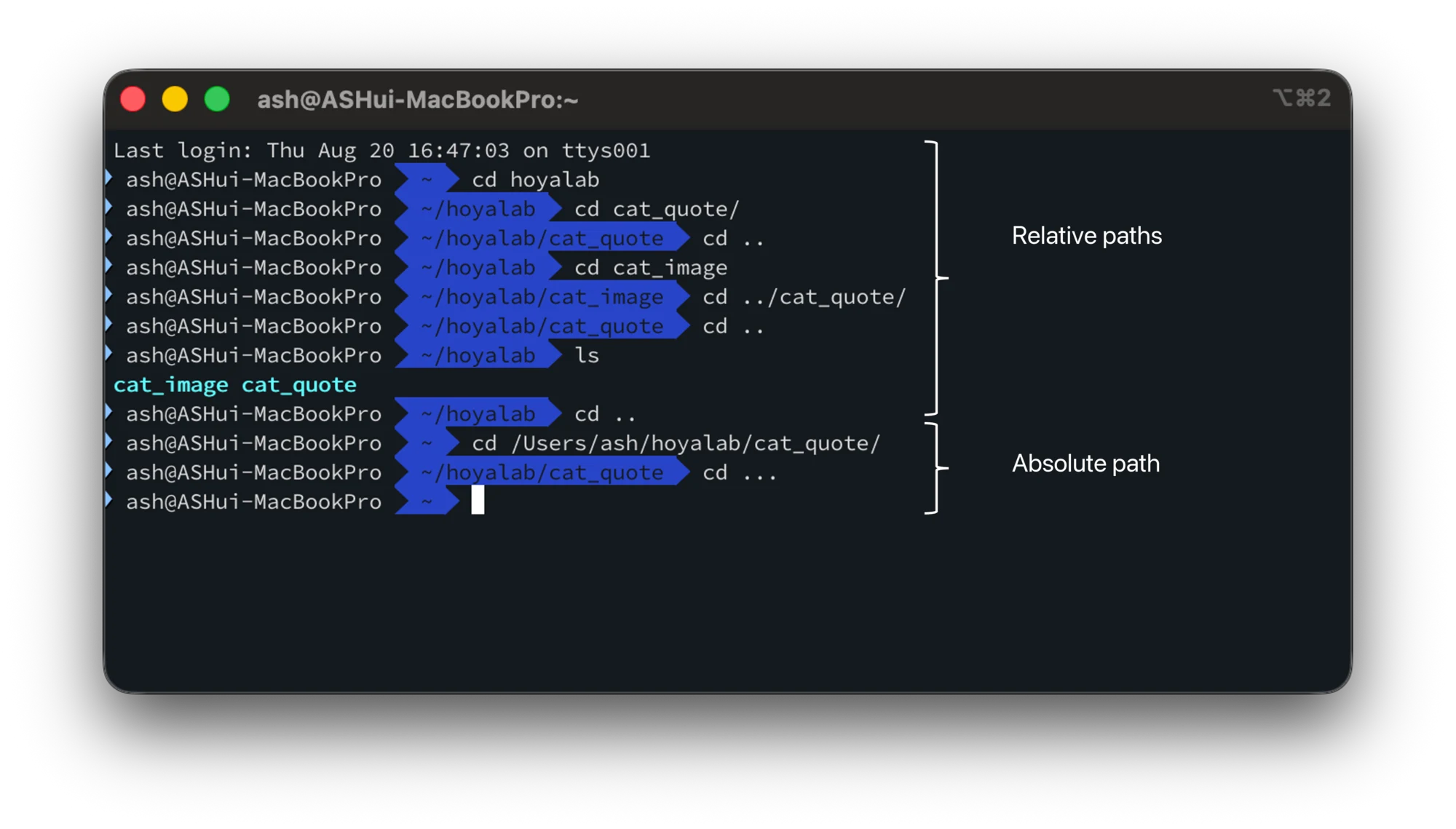
(The final cd ... jumps up two levels, but that's a shortcut from my own shell setup. In a plain shell, type cd ../.. instead.)
2. Hidden files: not visible doesn't mean not there
Files whose names start with a dot (.) don't show up on screen. But they're still there.
Why stress this on day one? Because the important files we'll create later all start with a dot:
.env: holds API keys and other secrets you need to handle carefully..gitignore: lists what Git should leave out..agents/: used when you work with AI agents.
Skip this now, and later you'll lose thirty minutes to "I can't find the file." (That really happened in class.)
To show hidden files: on a Mac press Cmd + Shift + .; on Windows, open File Explorer and check View → Hidden items; on Ubuntu press Ctrl + H.
3. The terminal: the real reason we learn it
The terminal is that black window where you type commands, as opposed to the GUI you click around with a mouse. What matters is that AI agents do their work in the terminal.
So we're not learning it to memorize commands:
When an agent wants to run a command, it asks you to approve it. You need to know what the command does to approve or refuse it sensibly. Today we use exactly six:
pwd: where am I?ls: what's here?cd: change folder (cd ..goes up)mkdir: make a foldercat: show a file's contentsrm: delete. There's no trash can; it's gone immediately. ⚠️
Add three time-savers and you're set: the up arrow brings back your previous command, Tab autocompletes names, and Ctrl + C stops a program that's stuck.
And one principle to plant today: never approve a command you don't understand. If an agent proposes rm or sudo, look twice. If you're not sure, just ask, "Explain what this command does."
To be fair, everything above can also be done in your regular file browser, so if you understand paths, that's mostly enough. But these days we click "Allow once" and "Always allow" constantly, and it helps to know exactly what's being asked. If you use Ubuntu, it helps even more.
4. Python: for reading, not writing
This is the most misunderstood part of the class. The goal isn't to memorize syntax as if for an exam. It's literacy. Being able to read code lets you do three things:
- Verify: get a rough sense of what the AI's code does.
- Direct precisely: point at a spot and say "change this, like so."
- Spot trouble: notice risks like an API key written straight into the code.
If you can't read it, all you can do is trust whatever the AI hands you. That's the scary part.
So the list of things to know is short: five kinds of values (strings, numbers, true/false, lists, dictionaries) and three building blocks of code (functions, if, and for). Add import, and you're done.
Dictionaries are worth remembering. They look like {"name": "Minsu"}, and when we handle API data (JSON) later in the series, it arrives in exactly this shape. You'll think, "Wait, I've seen this before."
Also note that import is a different step from installing.
Picture the place where Python runs as a study. The actual work happens on the desk. Python has collections of useful code, called packages, ready to go. Installing a package is like bringing a book home and putting it on the shelf.
pip install puts the part on your computer; import takes it off the shelf and into this particular file. They're separate. Install without importing, and you still can't use it.
One more thing: code uses indentation to show structure. The more a line is indented, the deeper it sits inside something else. A lot of code is sensitive to indentation, so be careful whenever you edit, copy, or paste part of it. Learn any one language and this will make sense quickly.
For learning Python, I recommend Jump to Python (in Korean), written for people who have never programmed before.
While writing this, I also came across a good YouTube video that reminded me of something I'd heard before. It's something I try to stay alert to, though honestly I've gotten complacent about it. We now outsource so much to AI: tasks, work, even thinking. But understanding still can't be outsourced.
If you want to use AI for anything beyond a small project, I strongly recommend learning to code.
5. Don't be scared of errors
Beginners often freeze when an error appears.
Back when I wrote everything by hand, it was strange when code ran without errors. These days I write so little myself that errors have become an old friend I rarely see.
Anyway, an error message is the most helpful thing a computer ever tells you. It says exactly what went wrong and where. You just need to know the order to read it in:
- The last line: the error's name (
NameError, for example). - The file name and line number: where it happened (
line 5). - Still stuck? Copy the whole thing and give it to the AI.
And sometimes there's no error, but the result is wrong. That's what print() debugging is for: put something like print("total =", total) under the line you suspect and see what the value really is. print() is for simple cases; you can also use Python's debugger to run the code line by line and inspect values as you go, but that's for another time.
I stress this because it pays to print before you ask the AI. When you know where the problem is, the AI's answer gets much better. "This value should be 3, but it's 0" beats "it doesn't work" a hundred times over. (It saves tokens, too.)
6. Virtual environments: what "it works on my machine" really means
Last one. You'll often hit "the code is right, but it won't run," and much of the time the problem isn't the code. It's the environment.
Packages are code parts that other people wrote and published, and you order them with pip. But every project needs different parts and different versions, and if you dump them all in one place, they collide. So you make a separate parts box for each project. That's a virtual environment (venv).
python3 -m venv venv                 # make the box
source venv/bin/activate             # open it (Windows: venv\Scripts\activate)
pip install package-name             # order a part
pip freeze > requirements.txt        # write out the parts list
deactivate                           # close the box
When the box is open, (venv) appears at the start of your terminal prompt. (With conda, the default is (base).) That's how you tell whether you're in your normal terminal or inside a virtual environment.
requirements.txt may not mean much yet, but it comes back later. It's the key to recreating the same environment on another computer, such as a deployment server, and the list you write out today is exactly what gets used then.
There's one exercise I always have the class do: create a virtual environment, install a package, and run your code. Then close the box with deactivate and run it again. You get a ModuleNotFoundError right away. That's the moment "close the box, and the parts are gone" sinks in through your hands instead of your head.
To sum up, virtual environments give you two things:
- Control over environment problems when you deploy.
- On your own machine, a separate environment per project, so one project's packages can't interfere with another's.
Today in one line each
- Paths: always know where you are.
- Hidden files: names starting with a dot are invisible (
.envcomes up in part 5). - The terminal: the AI's native language. Never approve a command you don't understand.
- Python: reading over writing, so you can verify and direct precisely.
- Errors: not failure, but helpful directions. Read the last line first.
- Virtual environments: a parts box for each project.
Everything today is the stage the AI performs on. If you don't know the stage, you don't know what the AI is doing on it.
Next time, we build a safety net with Git. AI changes code boldly, and vibe coding without commits is like playing a brutal gacha game without saving. Next session is about how to undo the damage.

Sources
- DORA, State of AI-assisted Software Development 2025: the source of "AI is an amplifier." It names strong version control and working in small batches among the capabilities that amplify AI's benefits.